 by
by Ask Claude for Unity code and it might hand you player.SetVelocitySmooth(). It looks perfect, and it doesn’t exist.
So fix your setup with a CLAUDE.md file that names your exact engine version. Make Claude read your code before it writes any. Then change one thing at a time and test it in the game.
On Unity 6 or later, try Unity’s official Claude Code plugin. Godot 4 and Unreal connect through MCP. Pick your engine below.
Why Use Claude for Game Development?#
Game development rarely involves writing a single isolated script. A typical project connects player movement, enemy AI, inventory systems, animations, UI, and save data.
Changing one system can introduce bugs somewhere else.
Claude Code is designed to work across project files rather than relying exclusively on code pasted into a chat window.
Here are four capabilities that make it relevant to game developers.
1. Project-Wide Code Understanding#
Claude Code can explore your codebase, locate relevant files, and examine how different systems interact.
For example, when debugging an inventory issue, it can inspect the inventory manager, save system, and UI scripts together.
This provides more context than examining each file independently.
2. Multi-File Editing#
Game development features often require changes across several scripts.
Claude Code can modify multiple files, helping you implement features that involve interconnected systems.
You still need to review the modifications and ensure they preserve existing functionality.
3. Debugging and Testing#
Claude Code can execute supported development commands, inspect error messages, and run tests.
This creates a workflow where the assistant can investigate a problem, propose a correction, and attempt to verify the result.
However, a successful compilation doesn’t guarantee that the game behaves correctly. Gameplay testing remains essential.
4. Game Engine Integration#
Supported integrations can extend Claude Code beyond ordinary file editing.
For example, compatible Unity and Unreal Engine integrations enable additional interaction with their editors.
The available functionality depends on the engine version, installed plugins, and permissions.
How to Build Games Faster With Claude Without Losing Control#
AI-generated code is a starting point, not proof that a feature works.
Claude might generate a working inventory system on its first attempt. Another task could require several rounds of debugging, especially when it involves physics, networking, animation, or interconnected gameplay systems.
There’s no reliable rule that AI completes 80% of every project or that two or three revisions will produce production-ready code.
What matters is having a workflow that catches problems before they spread.
1. Define What Success Looks Like#
Before generating code, describe the feature’s expected behavior.
For example, if you’re building a Unity inventory system, specify how items stack, what happens when the inventory is full, and how the system interacts with saving and loading.
Clear acceptance criteria give Claude something concrete to work toward.
2. Let Claude Inspect Before Implementing#
For complex tasks, ask Claude Code to examine the relevant project files and identify dependencies before making changes.
Review the proposed implementation plan.
This helps reduce the risk of introducing a new system that conflicts with your existing architecture.
3. Implement in Manageable Steps#
Avoid generating an entire game’s architecture in a single request.
Build one feature, verify it, and then move on to the next.
Use Git commits or other reliable backups to preserve working versions of your project.
4. Verify the Actual Gameplay#
Successful compilation is only the beginning.
Run the game and check whether the feature behaves correctly.
Test edge cases, inspect error messages, and confirm that existing systems still function.
Where possible, give Claude access to automated tests or other verification tools.
5. Review Before Moving Forward#
Inspect the generated changes and make sure you understand their purpose.
If a solution introduces unnecessary complexity, ask Claude to simplify it while preserving the required behavior.
Don’t accept repeated patches without investigating the underlying problem.
How to Set Up CLAUDE.md for Game Development#
One of the simplest ways to give Claude Code consistent project context is to create a CLAUDE.md file.
This Markdown file contains instructions about your project, including its coding conventions, architecture, development commands, and important constraints.
Claude Code automatically loads project-level instructions when starting a session in your project.
Instead of repeatedly explaining your engine version and coding standards, you can document them once.
Step 1: Generate Your CLAUDE.md File#
Open Claude Code in your project’s root directory and run:
/init
Claude Code will analyze your project and generate a starting CLAUDE.md file.
Review the generated instructions before using them. Delete incorrect assumptions and add important information that Claude cannot reliably infer from the codebase.
If a CLAUDE.md already exists, /init can suggest improvements rather than simply replacing it.
Step 2: Use This Unity Template#
Create a file named CLAUDE.md in your Unity project’s root directory.
Copy the following template and replace the placeholders with information from your actual project.
CLAUDE.md
# Project: [Game Name]

## Environment
- Unity version: [Exact version]
- Language: C#
- Target platform: [PC / Mobile / Console]
- Render pipeline: [URP / HDRP / Built-in]
- Input system: [Actual input system]

## Project Structure
- Gameplay scripts: [Path]
- Player controller: [Path]
- UI scripts: [Path]
- Scenes: [Path]

## Coding Rules
- Follow existing project conventions.
- Reuse existing systems where appropriate.
- Do not introduce dependencies without approval.
- Preserve serialized fields and Inspector references.
- Avoid unnecessary architectural complexity.

## Architecture
- Existing patterns: [Describe]
- Important dependencies: [List]
- Existing third-party packages: [List]

## Verification
- Check for compilation errors.
- Run relevant Edit Mode or Play Mode tests.
- Describe gameplay tests requiring manual verification.
- Do not claim tests passed unless executed.

## Workflow
- Inspect relevant files before changing code.
- Explain potentially breaking changes.
- Make small, reviewable modifications.
- Preserve existing functionality.
Important: Do not blindly introduce singleton managers, dependency injection, or new frameworks. Document the architecture your project actually uses.
If your game uses Zenject, include it. If it doesn’t, leave it out.
Step 3: Use This Godot Template#
Godot projects need different instructions because their architecture revolves around scenes, nodes, resources, and the chosen scripting language.
Use this template as a starting point.
CLAUDE.md
# Project: [Game Name]

## Environment
- Godot version: [Exact version]
- Language: [GDScript / C#]
- Target platform: [Platform]

## Project Structure
- Main scene: [Path]
- Player scene: [Path]
- Gameplay scripts: [Path]
- Reusable scenes: [Path]

## Coding Rules
- Use APIs compatible with our Godot version.
- Follow existing naming conventions.
- Prefer existing project patterns.
- Avoid unnecessary dependencies.
- Preserve scene and signal connections.

## Architecture
- Autoloads: [List actual autoloads]
- Important signals: [List]
- Shared resources: [List]

## Verification
- Check for parser errors.
- Run the project after modifications.
- Verify affected scene transitions.
- Report untested gameplay behavior.

## Workflow
- Inspect relevant scenes and scripts first.
- Avoid modifying unrelated resources.
- Explain changes to node paths and signals.
- Keep modifications small and reviewable.
Replace the placeholders with your actual configuration. Don’t invent autoloads, directories, or dependencies simply because they appear in an example.
Step 4: Verify That Claude Loaded Your Instructions#
After creating the file, start Claude Code from your project directory and run:
/context
Check that your CLAUDE.md appears under the loaded memory files.
If it doesn’t, verify its filename and location.
Step 5: Keep Your Instructions Short#
A good CLAUDE.md documents information Claude needs across development sessions.
Include:
- Engine versions and project-specific conventions.
- Important architectural decisions.
- Build and testing instructions.
- Known compatibility problems.
- Restrictions on modifying critical systems.
Avoid filling the file with entire tutorials, API documentation, or lengthy descriptions of code Claude can inspect itself.
You can also place additional CLAUDE.md files in relevant subdirectories. Claude Code loads those instructions when working with files in the corresponding areas.
For example, a networking directory might contain rules specific to multiplayer synchronization.
How to Use Claude Code with Unity: A Practical Workflow#
Claude can assist Unity developers in three different ways: through a browser, directly inside a local codebase, or with an integration that connects an AI agent to the Unity Editor.
The right workflow depends on your Unity version, project complexity, and the tools you have installed.
Three Ways to Use Claude with Unity#
| Method | How it works | Main limitation |
|---|---|---|
| Claude in your browser | Paste relevant code, describe your task, and manually apply the suggested changes. | Limited direct access to your project. |
| Claude Code | Inspect project files, edit C# scripts, run development commands, and work across multiple files. | Editor-specific actions require suitable tooling. |
| Claude Code + Unity Plugin | Combine coding assistance with Unity-specific skills, CLI workflows, and supported Editor operations. | Requires a compatible Unity environment and proper setup. |
Unity released its official Claude Code plugin on September 9, 2026. It combines Unity-specific development skills, the Unity CLI, and MCP-based Editor interaction. Step-by-step instructions are in our Claude Code Unity MCP setup guide.
The plugin supports Unity 6 and later.
Step 1: Prepare Your Unity Project#
Before allowing Claude to modify your project:
- Confirm your exact Unity version.
- Identify your rendering pipeline and input system.
- Create a Git commit or reliable backup.
- Make sure your project opens without existing compilation errors.
- Add accurate project instructions to your
CLAUDE.mdfile.
If you’re using third-party packages such as DOTween or Addressables, document the packages and versions relevant to the task.
Step 2: Choose Your Integration#
For small tasks, the browser version of Claude may be sufficient.
For multi-file changes, Claude Code can inspect and edit the relevant project files directly.
If you’re using Unity 6 or later, consider Unity’s official Claude Code plugin for additional engine-specific functionality.
Follow Unity’s official installation instructions:
Official Unity plugin for Claude Code
You can install the plugin from within Claude Code using the following commands:
Claude Code session
/plugin marketplace add Unity-Technologies/unity-agent-plugin
/plugin install unity@unity-agent-plugin
After installation, enter /unity: to see the available Unity skills.
The plugin also provides access to Unity’s CLI and supported Editor operations.
Step 3: Describe the Feature Clearly#
Don’t simply ask Claude to create a player controller.
Describe the engine version, existing components, intended behavior, and restrictions.
For example:
“Inspect my Unity 6 player controller and help me implement responsive 2D platformer movement.
The player uses Rigidbody2D and CapsuleCollider2D.
I need acceleration, deceleration, variable jump height, coyote time, and jump buffering.
Preserve the existing Input System configuration and avoid unnecessary dependencies.
Explain your proposed changes before modifying the project.”
For 3D projects, specify the appropriate movement components instead of assuming the same physics architecture applies.
Step 4: Review the Implementation Plan#
For changes affecting multiple scripts or gameplay systems, ask Claude to inspect the relevant files before writing code.
Review its proposed approach.
Check whether the solution introduces new packages, changes serialized fields, or modifies existing scene references.
Keep the implementation limited to the requested feature.
Step 5: Implement and Verify#
Ask Claude to implement one manageable change.
If your integration supports Editor operations, it may be able to perform certain scene modifications and inspect project information directly.
Otherwise, apply any necessary Editor configuration manually.
Then verify the result:
- Check the Unity Console for errors.
- Compile the project.
- Run relevant automated tests.
- Enter Play Mode and test the feature.
- Check whether existing gameplay still works.
A successful compilation does not prove that the feature behaves correctly.
Step 6: Debug with Actual Evidence#
When something fails, provide Claude with the relevant Console errors, scripts, and reproduction steps.
Screenshots can help explain visual problems involving UI, animation, or scene layout.
Ask Claude to identify the root cause rather than repeatedly adding speculative fixes.
After resolving the problem, retest the original feature and any affected systems.
Step 7: Commit the Working Result#
Once you’ve verified the change, review the modified files and commit the working implementation.
Keep your next task separate if it involves an unrelated system.
This reduces the risk of accumulating unverified changes across multiple gameplay features.
Claude Code for Godot 4: GDScript and MCP Setup#
Claude can help you write GDScript, debug gameplay systems, refactor scripts, and plan scene architecture. The key is giving it enough context about your actual Godot project.
Godot 3 and Godot 4 have important API differences. Always specify your exact engine version before generating code.
A practical workflow:
- Tell Claude your Godot version and whether you use GDScript or C#.
- Provide the relevant scene structure and existing scripts.
- Describe one feature or bug at a time.
- Ask Claude to follow your project’s existing coding conventions.
- Test the generated code inside Godot before continuing.
Typed GDScript can help the editor catch certain errors before runtime and improve code completion.
Connecting Claude to Godot with MCP#
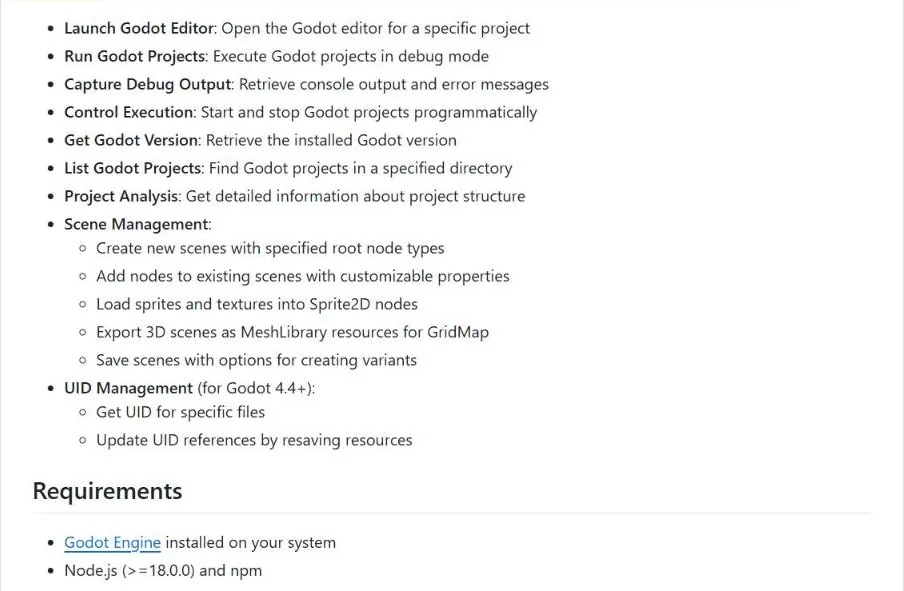
Model Context Protocol (MCP) integrations can give AI assistants access to additional Godot functionality.
Two community-developed options include:
- Coding-Solo/godot-mcp: Provides tools for launching Godot, running projects, and capturing debug output.
- ee0pdt/Godot-MCP: Provides editor integration for accessing scripts, scenes, nodes, and project resources.
These are third-party integrations, not official Godot features. Their installation requirements and capabilities differ.
Before connecting an AI assistant to an existing project, create a Git commit or backup. Begin with a small task, inspect the resulting changes, and verify that the project still runs.
Claude Code for Unreal Engine: C++, Blueprints & MCP#
Claude Code can help Unreal Engine developers write C++, debug compilation errors, implement gameplay systems, and work with Blueprints through supported editor integrations.
The workflow depends on your Unreal Engine version and available tools.
1. C++ Development with Claude#
Claude can generate Unreal-style C++ classes using UCLASS, UPROPERTY, and UFUNCTION macros.
Provide your exact Unreal Engine version, relevant header and source files, and the gameplay feature you want to implement.
Ask Claude to explain its proposed changes before modifying your project. Compile the generated code and verify the results inside Unreal Editor.
2. Blueprint Development with Claude#
Without an editor integration, Claude can explain Blueprint logic and describe which nodes to connect.
With a compatible MCP integration, supported AI agents can interact directly with Unreal Editor and perform Blueprint operations.
This means Blueprint assistance is no longer limited to written instructions, although actual capabilities depend on your engine version and installed tools.
3. Unreal Engine 5.8: Experimental MCP Integration#
Unreal Engine 5.8 introduces an experimental MCP plugin that enables compatible AI agents, including Claude Code, to interact with the editor.
To configure it:
- Open Edit → Plugins and enable Unreal MCP and All Toolsets.
- Restart Unreal Editor when prompted.
- Start the MCP server using the editor’s console.
- Generate Claude Code’s configuration using the command below.
- Launch Claude Code from your project directory.
ModelContextProtocol.StartServer
ModelContextProtocol.GenerateClientConfig ClaudeCode
Once connected, begin with a simple request such as asking Claude which actors are currently selected.
Important: Unreal MCP is experimental. Features may be incomplete or change between releases. Keep the server local, back up your project, and review all AI-generated modifications before using them in production.
How to Prompt Claude for Better Game Development Code#
The difference between a vague AI prompt and a useful one often comes down to context.
Claude needs to understand your engine version, existing project structure, desired behavior, and how the result will be tested.
You don’t need an elaborate prompt for every task. Simple changes can use simple instructions. For complex systems, provide enough information to prevent unnecessary assumptions.
Bad vs. Good Prompts#
Example 1: Unity Player Movement
Bad prompt:
“Make my player movement better.”
Better prompt:
“Inspect my Unity 6 player controller and improve its acceleration and deceleration. Preserve my existing Input System configuration and Rigidbody2D movement. Explain the proposed changes before editing, then provide steps to test the result in Play Mode.”
Example 2: Godot Debugging
Bad prompt:
“Fix my enemy AI.”
Better prompt:
“My enemy stops attacking after taking damage in Godot 4. Here are the relevant scripts, scene structure, and debugger output. Investigate the cause before changing code. Propose the smallest fix and explain how to verify that the enemy resumes attacking.”
Example 3: Unreal Engine
Bad prompt:
“Create a multiplayer inventory.”
Better prompt:
“Inspect my existing Unreal Engine inventory system. Explain which components need server authority and how inventory changes should replicate. Identify potential duplication risks. Propose an incremental implementation plan before modifying any C++ classes or Blueprints.”
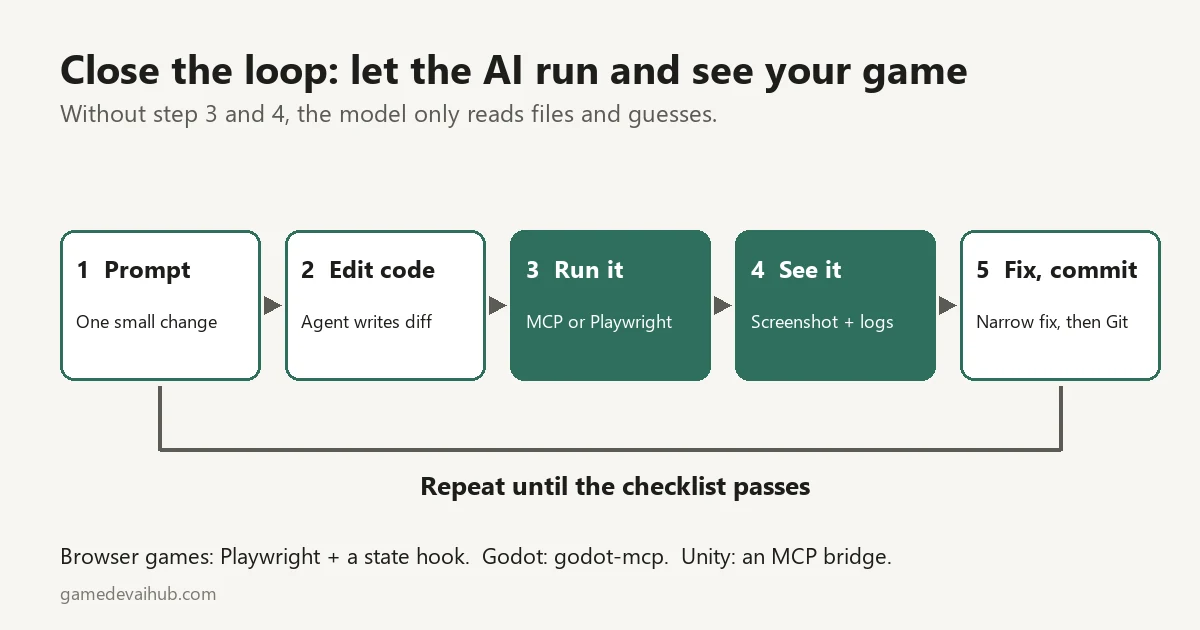
The Explore → Plan → Implement → Verify Workflow#
For complicated features, separate investigation from implementation.
1. Explore
Ask Claude to inspect relevant files, dependencies, and existing architecture.
2. Plan
Request an implementation plan that identifies affected files, potential breaking changes, and acceptance criteria.
Claude Code’s Plan Mode is useful when you want to review an approach before allowing code changes.
3. Implement
Approve the approach and implement one manageable milestone at a time.
4. Verify
Compile the project, run relevant tests, and confirm that the feature behaves correctly inside the game engine.
If something fails, provide the actual error messages or reproduction steps.
For small, straightforward edits, you can skip formal planning and request the change directly.
Handling Claude’s Limitations#
Hallucinated Functions and APIs#
Claude can generate code that looks correct but references methods, classes, or properties that don’t exist.
For example, it might suggest a Unity method such as player.SetVelocitySmooth() even though the method isn’t part of your project or the relevant Unity API.
These mistakes can appear in Unity C#, Godot GDScript, or Unreal Engine C++.
How to catch them:
- Specify your exact game-engine version.
- Ask Claude to inspect existing scripts before introducing unfamiliar methods.
- Check questionable APIs against official engine documentation.
- Compile or parse the generated code immediately.
- Test the actual gameplay behavior, not just whether the code compiles.
If Claude references an unfamiliar function, ask it to identify the class that defines it and explain whether it’s a built-in API, a third-party package, or a method your project must implement.
Never assume an API exists simply because the generated code looks convincing.
Outdated API Suggestions#
Game engines evolve. Classes, methods, packages, and recommended workflows can change between releases.
Code written for an older Unity or Godot version may require modification before it works in your current project.
A practical approach:
- Include your exact engine and package versions in
CLAUDE.md. - Consult documentation matching your installed version.
- Provide compiler errors, parser errors, and deprecation warnings to Claude.
- Ask for the smallest compatible correction rather than an unnecessary rewrite.
- Recompile and test after applying the change.
For Unity, verify unfamiliar APIs against the official Scripting API documentation.
For Godot, check the documentation for your installed engine version, especially when working with code that may have been written for Godot 3.
For Unreal Engine, confirm that generated code matches your installed engine version and enabled plugins.
Context window limitations#
Claude Code can work with large projects, but a bigger context window doesn’t guarantee better results.
Long development sessions accumulate file contents, command outputs, debugging logs, and conversation history. As this information grows, important instructions can become harder for Claude to follow.
The available context window depends on the model and configuration.
How to manage context effectively:
/context— Check what’s consuming your context window./compact— Summarize the current conversation while preserving important information./clear— Reset the conversation when switching to an unrelated task.- Keep project-wide instructions in
CLAUDE.md. - Ask Claude to inspect relevant files rather than reading your entire codebase unnecessarily.
Claude Code also supports automatic conversation compaction when approaching context limits.
Best practice: Keep each development session focused on a specific feature or problem. For complex projects, document important decisions so they survive between sessions.
Over-engineering
AI-generated code can introduce unnecessary complexity, such as extra manager classes, interfaces, dependency injection, or configuration systems that your game doesn’t actually need.
For example, a simple Unity countdown timer rarely requires an entire service architecture.
How to prevent unnecessary complexity:
- Ask Claude to inspect your existing architecture before creating new systems.
- Prefer built-in Unity components or Godot nodes when they already solve the problem.
- Avoid introducing new dependencies for simple features.
- Request small, focused changes instead of unrelated refactoring.
- Only introduce abstractions when they solve a real problem.
Try this prompt:
“Inspect my existing implementation and propose the simplest solution that meets my requirements. Reuse existing components where appropriate. Don’t introduce new frameworks, unnecessary abstractions, or unrelated changes. Explain why any additional complexity is necessary.”
Some complexity is justified, particularly in multiplayer systems, persistent save data, and larger projects. The goal is to avoid complexity that provides no practical benefit.
Claude vs ChatGPT vs GitHub Copilot for Game Development#
Claude, ChatGPT, and GitHub Copilot can all assist with game development. However, comparing them purely by model name misses an important distinction: the tools, integrations, and development environment determine what an AI assistant can actually do.
How the tools differ#
| Tool | Development workflow | Key capabilities |
|---|---|---|
| Claude Code | Terminal and supported development environments | Reads project files, edits code, runs commands, executes tests, and supports MCP integrations. |
| ChatGPT & Codex | ChatGPT, IDE, terminal, and cloud environments | Coding assistance, repository-based development, multi-file changes, debugging, and automated coding tasks through Codex. |
| GitHub Copilot | Supported IDEs, GitHub, and CLI | Inline code suggestions, code explanations, agent-based editing, planning, and development workflows. |
What should game developers compare?#
Instead of assuming one assistant produces better Unity, Godot, or Unreal Engine code, evaluate each tool against your actual project.
Consider these factors:
- Engine compatibility: Does the integration support your specific engine version?
- Project awareness: Can it inspect the relevant files, scenes, and dependencies?
- Editor integration: Can it interact with your editor or only generate code?
- Debugging: Can it run tests, inspect errors, and revise its changes?
- Cost: What usage limits and additional charges apply to your workflow?
For example, a developer building a Unity project may value direct editor integration, while someone maintaining a large C++ codebase may prioritize repository navigation, compilation, and debugging tools.
These requirements are different, and the available capabilities change as products evolve.
A practical comparison method#
Give each assistant the same task using identical project files and requirements.
Measure whether the generated code compiles, whether the feature works correctly, how many corrections are required, and how much time the complete process takes.
Don’t judge the tools by how convincing their explanations sound. Judge the results against clearly defined requirements.
Claude Pricing for Game Developers (2026)#
How much does Claude actually cost when developing a game?
There are two main ways to pay: a Claude subscription that includes Claude Code, or pay-as-you-go API access.
The right option depends on how frequently you develop, the complexity of your projects, and whether you need to integrate Claude into your own applications.
Prices verified September 17, 2026. All prices are in USD.
Claude Subscription Plans#
Claude Code is included in Pro and Max subscriptions, making them relevant to developers who want an AI coding assistant inside their terminal or supported IDE.
| Plan | Price | Usage allowance |
|---|---|---|
| Free | $0 | Limited Claude access; Claude Code not included |
| Pro | $20/month | Standard paid usage |
| Max 5x | $100/month | 5× Pro usage capacity per session |
| Max 20x | $200/month | 20× Pro usage capacity per session |
Pro is also available for $200 annually. Max subscriptions are billed monthly.
All paid plans include Claude Code, but none provide unlimited usage. Claude and Claude Code share usage limits.
Important: The 5× and 20× figures describe relative usage capacity, not a guaranteed number of prompts or development hours.
Claude API Pricing#
Developers using Claude through the API pay based on token consumption.
For Claude Sonnet 5, standard API pricing is:
| Token type | Price per million tokens |
|---|---|
| Input | $2 |
| Output | $10 |
Input tokens include information sent to the model, such as prompts, code, and project context. Output tokens represent the content Claude generates.
Your actual cost depends on the number of tokens processed, your model, and additional features.
Prompt caching and batch processing can change the final cost.
Important: API billing is separate from a standard Claude subscription. If Claude Code authenticates using an API key instead of your subscription, its usage may incur API charges.
What Happens When You Reach Your Usage Limit?#
Pro and Max subscriptions have usage limits.
When you reach your allowance, you can wait for it to reset or choose to use additional paid usage.
Additional usage is billed separately when enabled. Monitor your spending and configure usage controls before starting lengthy development sessions.
In Claude Code, use /status to check your current usage.
How to Control Costs During Game Development#
Whether you’re building a Unity prototype or maintaining a large Unreal Engine project, unnecessary context and repeated failed attempts can consume usage.
Keep expenses manageable by:
- Working on one clearly defined feature at a time.
- Supplying relevant project files instead of unnecessary code.
- Testing generated changes before requesting additional work.
- Using the appropriate model for each task.
- Monitoring your remaining usage and spending.
The objective is not to generate as much code as possible. It’s to complete useful development work with fewer errors and unnecessary iterations.
Where to Check Current Prices#
Pricing, features, and usage limits can change.
Check Anthropic’s official resources before subscribing or estimating the cost of a major project:
Vibe Coding vs. AI-Assisted Game Development#
Can you build an entire game by describing what you want to Claude?
Potentially, yes. But there’s an important difference between vibe coding and using AI as a software development assistant.
What Is Vibe Coding?#
Andrej Karpathy coined the term in 2025 to describe a workflow where developers describe features in natural language, accept AI-generated code, and iterate based on the results without necessarily understanding the underlying implementation.
For a small prototype, this approach can help you experiment quickly.
However, problems become harder to diagnose when the generated code grows beyond your understanding.
A More Controlled Approach for Game Development#
For projects you intend to maintain, publish, or sell, use a more structured AI-assisted workflow:
- Describe: Define the feature and its expected behavior.
- Plan: Ask Claude to inspect the project and propose an implementation.
- Implement: Make one manageable change at a time.
- Verify: Compile the code and test the feature in your game engine.
- Review: Understand the changes before committing them.
Claude Code can help with implementation and verification, but successful compilation alone doesn’t prove that a gameplay feature works correctly.
Test edge cases, inspect performance, and keep your project under version control.
Want to try the process yourself? Follow our step-by-step guide to vibe coding a game to move from an initial idea to a playable prototype.
10 prompts you can copy right now#
Need more examples? Explore our collection of 40+ vibe coding game prompts for additional ideas covering prototyping, debugging, and different game types.
These prompts provide starting points for common game development tasks. Adapt the engine version, project structure, and requirements to your own game. Always test generated code before using it in production.
1. Unity 2D Player Controller with Responsive Movement#
Create a responsive 2D platformer controller in Unity 6 using C#.
Requirements:
- Smooth acceleration: 0.2 seconds to maximum speed.
- Faster deceleration: 0.1 seconds to stop.
- Coyote time: 100 milliseconds after leaving a platform.
- Jump buffering: 150 milliseconds before landing.
- Variable jump height when releasing the jump button early.
- Unity’s Input System package.
- Rigidbody2D and CapsuleCollider2D.
- Reliable ground detection using the 2D physics system.
Implementation rules:
Use Unity 6-compatible APIs. Separate input handling from physics updates where appropriate. Avoid unnecessary dependencies and abstractions.
Before writing code, explain the required GameObject components and Input Actions.
Then provide the complete C# script, Inspector configuration, and setup instructions.
Finally, explain how to test acceleration, jumping, ground detection, and collisions in Play Mode.
2. Save system architecture#
Design a reliable save system for a Unity 6 roguelike using C#.
Game data to save:
- Player stats, health, and experience.
- Inventory and equipped items.
- Current dungeon floor and procedural generation seed.
- Player position and progression.
- Multiple independent save slots.
Technical requirements:
- JSON serialization using Unity-compatible data structures.
- Store files in
Application.persistentDataPath. - Include a save-format version for future migrations.
- Validate loaded data before applying it.
- Use temporary files and backups to reduce the risk of corrupted saves.
- Detect incomplete or invalid save files and provide recovery options.
- Separate game-state collection, serialization, and file storage.
- Prepare an interface for future cloud-save integration without implementing a cloud service.
Implementation instructions:
First, explain the architecture and propose a simple file structure.
Then provide complete Unity 6-compatible C# scripts, including setup instructions.
Explain Unity’s JsonUtility limitations and use an appropriate serialization approach.
Finally, show how to test saving, loading, missing files, corrupted files, and compatibility with older save versions.
Keep the implementation straightforward. Avoid unnecessary dependencies and don’t claim corruption recovery is guaranteed.
3. Debugging help#
Help me debug an enemy AI that freezes after taking damage in Unity.
Project details:
- Unity version: [Insert version]
- Relevant scripts: EnemyAI.cs and HealthSystem.cs
- Expected behavior: The enemy takes damage, reacts, and resumes its normal behavior.
- Actual behavior: The enemy freezes after taking damage.
- Console errors: [Paste the complete error log]
- Relevant code: [Paste both scripts]
Your task:
- Inspect the relevant code and error messages before proposing changes.
- Identify potential causes and distinguish confirmed findings from hypotheses.
- Explain how to reproduce the bug consistently.
- Identify the root cause using evidence from the code or runtime.
- Propose the smallest reliable fix without rewriting unrelated systems.
- Show the exact code changes and explain why they are necessary.
- Provide a regression test or manual test procedure to verify that the enemy resumes its normal behavior after taking damage.
Check coroutine lifecycle, state transitions, animation events, and disabled components where relevant.
Do not invent missing code, error messages, or test results. If you need additional information, tell me exactly what to provide.
Goal: Fix the underlying problem without introducing new bugs or changing unrelated gameplay behavior.
4. Code Review: Find Bugs, Performance Issues, and Architectural Problems#
Review my Unity inventory system as a senior C# engineer.
Project information:
- Unity version: [Insert version]
- Relevant scripts: [Paste inventory scripts]
- Expected behavior: [Describe the system]
- Known problems: [Describe any existing issues]
Review the following:
- Performance bottlenecks involving large inventories, unnecessary allocations, and repeated searches.
- Event subscriptions that might remain active after an object is disabled or destroyed.
- Race conditions or unsafe Unity API access in asynchronous operations.
- Null references, invalid item states, and potential duplication exploits.
- Serialization and save compatibility.
- Unnecessary dependencies and excessive architectural complexity.
Output format:
Create a table containing:
- Finding
- Severity
- File and line number
- Evidence
- Recommended fix
Separate confirmed problems from potential risks.
Prioritize defects that affect correctness before suggesting architectural improvements.
Show the smallest necessary code changes.
Finish with a testing checklist covering item stacking, transfers, equipment changes, saving, and loading.
Do not invent profiler measurements or claim to have tested code that you have not executed.
5. Godot 4: Build a Modular Player State Machine#
Create a maintainable 2D player state machine using GDScript for Godot 4.
Project details:
- Exact Godot version: [Insert version]
- Player node: CharacterBody2D
- Input actions: [List existing actions]
- Existing scene structure: [Paste scene tree]
Required gameplay states:
- Idle
- Walk
- Run
- Jump
- Fall
- Attack
Technical requirements:
Use typed GDScript and a clear state-transition system.
Handle input and movement through the appropriate Godot physics workflow.
Prevent invalid transitions, such as repeatedly triggering an attack that is already in progress.
Integrate AnimationPlayer and AnimationTree where appropriate.
Use signals for meaningful state changes without creating unnecessary dependencies.
Implementation instructions:
- Explain the state-machine architecture.
- Show the recommended scene tree.
- Provide the complete GDScript files.
- Explain how each state transitions to another.
- Show how to configure the animations.
- Provide a testing checklist.
Follow established Godot 4 conventions and explain any assumptions about missing project information.
Prefer the simplest architecture that supports these six states without unnecessary abstractions.
6. Unity Performance Optimization: Fix a Slow Update Loop#
Help me optimize a Unity C# script that causes frame drops during gameplay.
Project details:
- Unity version: [Insert version]
- Target platform: [PC, Android, console, etc.]
- Target frame rate: [Insert target]
- Script: [Paste complete code]
- Profiler results: [Paste measurements or attach screenshots]
I suspect repeated object searches inside Update() are contributing to the problem, but I want you to verify this rather than assume it.
Your task:
- Review the code and available profiler evidence.
- Identify confirmed bottlenecks and distinguish them from hypotheses.
- Check whether object searches, allocations, physics operations, or unnecessary calculations occur every frame.
- Propose the smallest changes that address the measured bottleneck.
- Preserve the script’s existing public interface and behavior.
- Show the original and optimized code.
- Explain any trade-offs, including memory usage and object lifecycle considerations.
Consider caching references or event-driven updates only where they are appropriate.
Verification:
Explain how to compare CPU time, allocations, and frame-time stability before and after optimization using Unity’s Profiler.
Do not invent performance improvements or claim a specific percentage gain without actual measurements.
7. Procedural Dungeon Generation With Reproducible Seeds#
Create a deterministic procedural dungeon generator for a 2D roguelike in Unity 6 using C# and Tilemaps.
Requirements:
- Generate rectangular rooms connected by corridors.
- Use a configurable dungeon width and height.
- Accept an integer seed.
- Generate the same logical dungeon layout from the same seed and settings.
- Prevent overlapping rooms unless explicitly allowed.
- Guarantee that every required room is reachable.
- Place the player in a valid starting room.
- Place enemies, treasure, and exits on valid walkable tiles.
- Scale difficulty according to dungeon depth.
Implementation rules:
Use a dedicated seeded random-number generator rather than relying on unrelated global random state.
Separate logical dungeon generation from Tilemap rendering.
Expose useful generation settings in the Inspector.
Avoid unnecessary allocations and repeated per-tile operations where a more efficient approach is suitable.
Deliverables:
- Explain the dungeon-generation algorithm.
- Provide the complete C# implementation.
- Explain the required Unity scene and Tilemap setup.
- Show how to regenerate a dungeon using a supplied seed.
- Implement or describe connectivity validation.
- Provide tests for determinism, map boundaries, reachable rooms, and valid spawn locations.
If the generation algorithm fails to produce a valid dungeon, explain how the failure is handled.
Do not claim deterministic behavior without providing a way to verify it.
8. Convert a Single-Player Inventory Into Multiplayer#
I have an existing single-player inventory system in Unity and want to prepare it for multiplayer.
Project details:
- Unity version: [Insert version]
- Networking framework: [Netcode for GameObjects, Mirror, or other]
- Existing inventory scripts: [Paste files]
- Multiplayer architecture: [Dedicated server, host-client, or other]
Requirements:
- Server-authoritative inventory changes where the chosen architecture uses a server.
- Validation of pickup, drop, trade, and equipment requests.
- Inventory synchronization between relevant clients.
- Protection against duplicate items and conflicting operations.
- Appropriate handling of latency and disconnections.
- Preservation of existing single-player functionality where practical.
Your task:
First, inspect the current architecture and identify which responsibilities must change.
Explain which data belongs on the server and which data clients need to display.
Propose an incremental migration plan rather than immediately rewriting the entire inventory system.
Show the minimum required code changes for the first milestone.
Explain whether client prediction or rollback is necessary for this particular inventory system. Do not implement these features automatically if simpler synchronization is sufficient.
Testing requirements:
Provide test scenarios for simultaneous pickups, item transfers, disconnections, delayed messages, and invalid client requests.
Clearly identify any security assumptions and limitations.
9. Explain and Modify a Game Shader#
Act as a senior graphics programmer and explain the following shader to someone learning game development.
Project details:
- Engine: [Unity, Godot, or Unreal Engine]
- Engine version: [Insert version]
- Shader language: [HLSL, GLSL, Godot shader language, etc.]
- Rendering pipeline: [URP, HDRP, Built-in, or applicable equivalent]
Shader code:
[Paste the complete shader here]
Part 1 — Explain the existing shader
Explain what the shader does in plain English.
Walk through the important variables, functions, inputs, and calculations.
Explain how the shader produces its final visual output.
Identify any assumptions, compatibility limitations, or potential performance issues.
Part 2 — Add a dissolve effect
Modify the shader to support a dissolve transition that progresses from the bottom of the object to the top.
Requirements:
- Adjustable dissolve progress.
- Configurable dissolve-edge width.
- Configurable edge color.
- Smooth, predictable progression.
- Compatibility with the specified rendering pipeline.
Provide the complete modified shader and explain how to configure its properties.
Part 3 — Verification
Explain how to test the effect inside the engine.
If the supplied shader requires additional information or an incompatible approach, explain the problem before generating replacement code.
Do not claim the shader has compiled or rendered successfully unless it has actually been tested.
10. Refactor an 800-Line Unity Script Without Breaking the Game#
I have a large Unity C# script that handles player input, movement, animation, audio, and UI updates.
I want to improve its maintainability without changing the player’s behavior.
Project details:
- Unity version: [Insert version]
- Original script: [Paste complete script]
- Related scripts: [Paste relevant files]
- Existing public API: [List important public members]
Your task:
- Analyze the existing script and identify its distinct responsibilities.
- Identify dependencies between these responsibilities.
- Propose a minimal refactoring plan before writing code.
- Show the proposed file structure.
- Explain which public methods, serialized fields, and events must remain compatible.
Separate responsibilities only when doing so improves clarity or testability.
Avoid introducing unnecessary managers, frameworks, or dependency-injection systems.
Preserve existing gameplay behavior, Inspector references, and scene compatibility wherever possible.
If a public interface must change, identify the breaking change and explain how to migrate existing callers.
Implementation:
Refactor the code incrementally and provide complete replacement files for each milestone.
Explain how the components communicate and how to configure them in Unity.
Verification:
Provide a regression checklist covering input, movement, animations, sound, UI updates, and scene transitions.
Identify any changes that require manual Inspector configuration.
Do not claim behavioral equivalence without testing.
Goal: Make the code easier to understand, maintain, and extend without turning a straightforward player controller into an unnecessarily complicated architecture.
When to Stop Using AI#
Claude can accelerate game development, but continuing to generate fixes without understanding the problem can waste time and introduce new bugs.
The solution isn’t always to abandon AI. Sometimes you need to change how you’re using it.
5 Signs You Should Take Manual Control#
1. Claude keeps repeating the same mistake.
Stop requesting variations of the same fix. Inspect the relevant code, reproduce the problem, and gather evidence before continuing.
2. You don’t understand the generated code.
Ask Claude to explain the implementation, its dependencies, and any potential side effects.
If you still can’t understand the system well enough to maintain it, investigate it yourself before accepting further changes.
3. The solution keeps getting more complicated.
Repeated patches, new manager classes, and unnecessary abstractions can indicate that the underlying problem hasn’t been identified.
Return to the last verified working version and reassess the architecture.
4. Performance problems require real measurements.
Don’t blindly apply optimization suggestions.
Use your game engine’s profiler to identify the bottleneck, then use Claude to investigate solutions supported by the measurements.
5. The AI cannot verify its changes.
If Claude lacks access to the engine, relevant files, or testing tools, it may be unable to confirm whether a proposed fix works.
Run the game yourself, collect the results, and provide them before continuing.
A Better Recovery Workflow#
When AI-assisted development stops producing progress:
- Save your current work and identify the last known working version.
- Reproduce the problem consistently.
- Collect relevant errors, logs, and profiler measurements.
- Identify which changes introduced the issue.
- Fix the root cause rather than adding another workaround.
- Test the corrected behavior before continuing.
Claude Code offers checkpoints that can help you rewind its changes, but these don’t replace Git or a proper backup strategy.
Common Mistakes and How to Avoid Them#
Even experienced developers can run into problems when integrating Claude into their game development workflow. Here are six mistakes worth avoiding.
1. Trusting Code Without Testing It#
The mistake: Accepting generated code because it looks correct or compiles successfully.
The fix: Test the actual gameplay. Verify movement, collisions, animations, and interactions inside your game engine. Compilation alone isn’t enough.
2. Making Too Many Changes at Once#
The mistake: Asking Claude to implement several interconnected systems before verifying any of them.
The fix: Break complex features into manageable milestones. Test each milestone before moving forward.
3. Repeating Failed Fixes#
The mistake: Continuing to request variations of a solution without identifying the underlying problem.
The fix: Stop, collect error logs and reproduction steps, and ask Claude to investigate the root cause. Start a fresh session if the conversation becomes cluttered with failed approaches.
4. Ignoring Engine Compatibility#
The mistake: Using generated code without checking whether its APIs match your installed Unity, Godot, or Unreal Engine version.
The fix: Document your engine and package versions in CLAUDE.md. Verify unfamiliar APIs against the appropriate official documentation.
5. Skipping Version Control#
The mistake: Allowing an AI agent to modify dozens of files without preserving a working version.
The fix: Use Git, review the changes, and create commits at verified milestones. Work on a separate branch for risky experiments.
Claude Code’s checkpoints can help rewind changes, but they aren’t a replacement for version control.
6. Granting Unnecessary Permissions#
The mistake: Giving an AI agent unrestricted access to files, commands, or external services when the task doesn’t require it.
The fix: Review permission requests, use an isolated development environment for experiments, and avoid exposing credentials or production systems unnecessarily.
Final Verdict: Is Claude Worth Using for Game Development?#
Claude can be a valuable development assistant, but generating code is only one part of making a game.
The real challenge is turning that code into a reliable, playable experience.
For Unity developers, Claude Code’s official integration opens up workflows that go beyond copying scripts between a browser and the Editor. Godot developers can use Claude for GDScript and scene architecture, while Unreal Engine developers can explore C++ assistance and supported editor integrations.
The results still depend on your project, the tools you connect, and how carefully you verify changes.
Your Next Steps#
If you’re getting started with Claude for game development, follow this workflow:
- Set up your project: Create a CLAUDE.md file containing your engine version, architecture, and coding conventions.
- Start small: Choose one gameplay mechanic instead of asking Claude to generate an entire game.
- Provide context: Give Claude access to the relevant scripts, scene structure, and requirements.
- Test immediately: Compile the code, run the game, and verify the feature against its intended behavior.
- Keep control: Review changes, maintain version control, and understand the systems you’re building.
Don’t measure success by how much code Claude generates. Measure it by how many working, maintainable features you can actually implement.
Start with one mechanic. Make it work. Test it. Then build the next one.
Thanks for this guide! I am using Godot 4.6 (4.7) and recently with Claude AI Pro ($20). I had a really great experience with Claude code. I wonder if i should upgrade to Claude AI Max x5 ($100) as i already reached my weekly limit, wasting tokens as a beginner…Max x20 ($200) sounds like a great deal, but that money is a bit to much for an indie-dev like me.
In any case, i am currently researching how to use Claude AI effectively. I wonder if i should just feed Claude, Articles likes yours and of course the best practice pages from the official site and let Claude grab the importent bits for me and keep them in memory and guide/ intervene in my work. Sounds good? Or maybe it will just eat up my tokens…
One thing with claude code, that it is not integrated in claude projects…so that i can have multiple claude code chats organized under the same project in the claude app…